

Overview
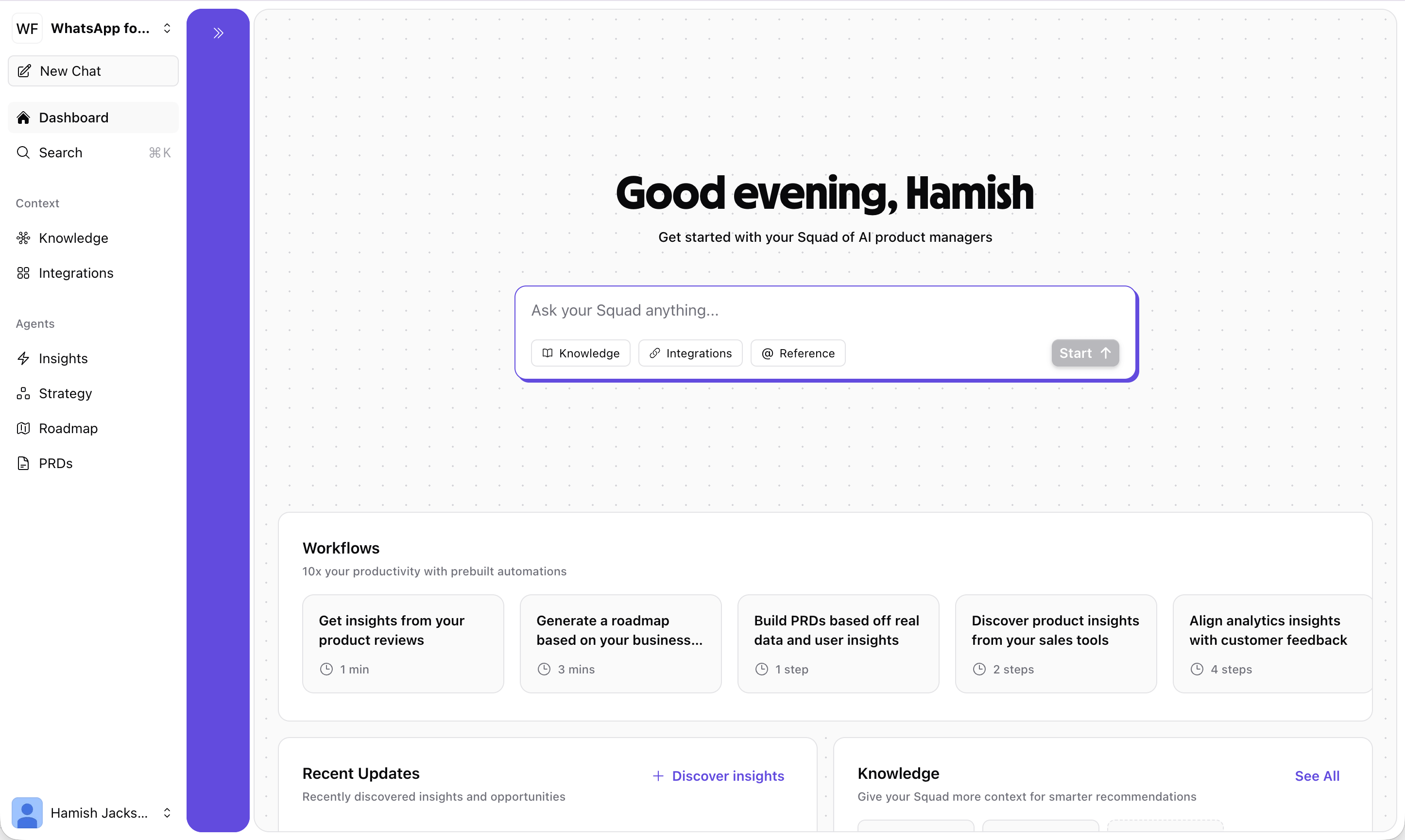
Dashboard sections
Chat input
At the top of the Dashboard, you’ll find a chat input with the prompt “Ask your Squad anything…”. This gives you instant access to your AI product agent without navigating to the Chat page. The input includes quick-access buttons for:- Knowledge — Browse and manage your workspace knowledge
- Integrations — Connect new data sources
- @ Reference — Reference specific goals, opportunities, or knowledge items
Workflows
The Workflows section helps you 10x your productivity with pre-built automations. Each workflow card shows the estimated time or number of steps to complete:Get insights from your product reviews
Automatically analyze app store and review site feedback (~1 min)
Generate a roadmap based on your business
Build a complete roadmap from your goals and data (~3 mins)
Build PRDs based off real data and user insights
Create detailed product requirement documents (1 step)
Discover product insights from your sales tools
Surface opportunities from sales and support data (2 steps)
Knowledge
The Knowledge section shows your connected knowledge items — text documents, uploaded files, links, and integration data that Squad uses to provide context-aware responses. From here you can quickly see what context Squad has access to and navigate to the full Knowledge panel to add more.Integrations
The Integrations section provides quick-connect cards for popular integrations like Notion, App Store, Play Store, and Google Reviews. Click “Connect” on any card to set up the integration and start feeding data into Squad.Related features
Chat
Continue conversations with your AI product agent
Knowledge
Manage your workspace knowledge and context
Insights
Dive deeper into analytics and user feedback